Why paper work orders fail
Paper is not the problem. The path it takes is. The work order is printed, goes in the van, comes back signed, sits on a desk and is typed later. Somewhere in the middle, it disappears. When the customer calls, nobody knows whether the service was done.
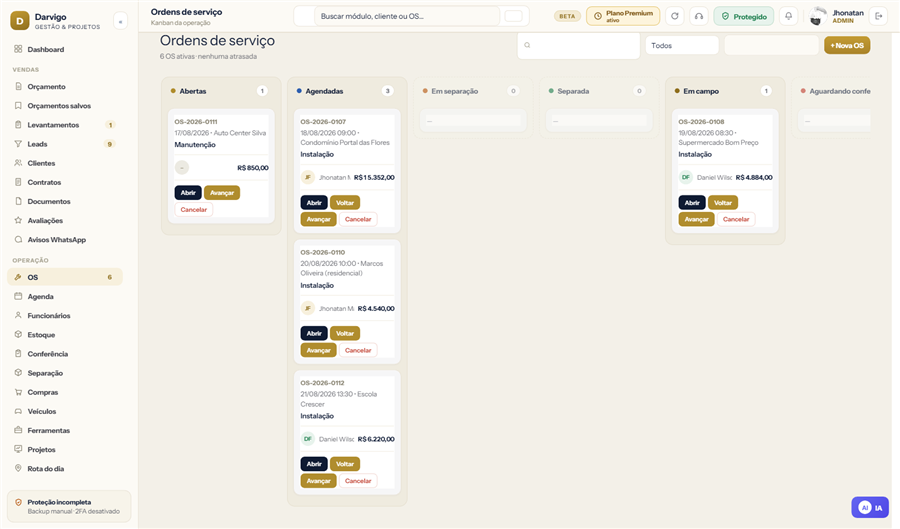
On the phone, the work order is created in the office and updated in the field. Both sides see the same thing. That changes four things:
- The technician knows exactly what to do that day.
- The office knows whether he arrived, finished and which material was used.
- The customer signs on the screen, with before and after photos.
- Billing comes from the completed work order, without waiting for someone to remember.
What the technician needs in hand
If the system requires ten taps to open a work order, the technician goes back to paper. The field screen must be short:
- Today list in order. Customer, address, service and phone.
- Route button. Open the map directly on the phone.
- Arrival check-in. One tap records the time and location.
- Service checklist. What was done, what was tested and what is pending.
- Photos. Before, during and after, with a simple caption.
- Material used. What left the van and what came back.
- Customer signature. On screen, with the name of the person who received it.
- Complete button. The work order closes and the office is notified.
What the office needs to see
On the other side, the owner and finance team need answers, not a photo wall. The work order must show:
- Status: open, scheduled, in progress, completed, billed or cancelled.
- Owner: who has the work order at that moment.
- Time: scheduled, arrival and completion.
- Material: what was reserved, used and returned.
- Value: service, material and discount, if any.
- Pending items: what is left for the next visit.
- Billing: whether the completed work order has been invoiced.
When this information lives in one place, the office stops calling the technician and the technician stops repeating the same explanation.
A paperless work order step by step
- The quote is approved. The system turns it into a work order with the same items, values and address.
- The office schedules it. Choose the technician, the day and the time window. The team schedule is updated.
- The technician receives it on the phone. He sees the day list, the address and what to bring.
- Arrived: he checks in. The office sees the time and the point on the map.
- Executed: he fills the checklist, takes photos and records the material used.
- Customer approves: signs on screen and receives a summary of the service.
- Work order completed: finance sees the billing pending and issues the invoice if needed.
The gain is not only organization. It shortens the time between the service done and the money in the account.
Mistakes that make technicians abandon the phone
- Too many required fields. If he must fill ten fields before starting, he will leave it for later.
- Photos that take too long to upload. The system must accept the photo and let the work continue without freezing the screen.
- Work orders without signal. If the technician works in a place with no internet, agree on the process. Darvigo works connected and needs signal to sync.
- Company finance in the technician hands. He does not need to see company profit. He needs to see his work orders.
- Nobody looks at what was filled in. If the office does not use the information, the field notices and stops filling it.
How Darvigo does it
In Darvigo, an approved quote becomes a work order. The technician opens it in the phone browser, with nothing to install, and can add a shortcut to the home screen. Inside the work order he sees the service, the address, checks in with GPS, takes photos, records material and collects the signature. The office follows the status and finance bills what was completed.
All of this is in the BRL 99.90 per month plan, together with inventory, finance, invoicing and floor-plan projects.
See this running with your own customers
Darvigo is BRL 99.90 per month for the whole company. The 7-day trial does not require a credit card.
Create free accountFrequently asked questions
Does the technician need to install an app?
No. Darvigo opens in the phone browser. The technician can create a home screen shortcut to open it with one tap, without going through an app store.
Does GPS check-in work on any phone?
It works on a phone with a browser and location permission. The technician must allow location access the first time.
Can the technician see the service value?
He sees what he needs to execute the work order. Company finance, profit and revenue are restricted to the owner and the people he authorizes.
Does the customer receive a receipt?
The completed work order keeps photos and signature. The office can generate the document and send it with the invoice.
What if the technician forgets to complete the work order?
The office sees the work order in progress and asks him to close it. That is why status must be visible to both sides.
Can it be used where there is no internet?
Darvigo works connected. If the location has no signal, the technician can note what is needed and complete the work order when the connection returns. The important thing is not to leave it open.